
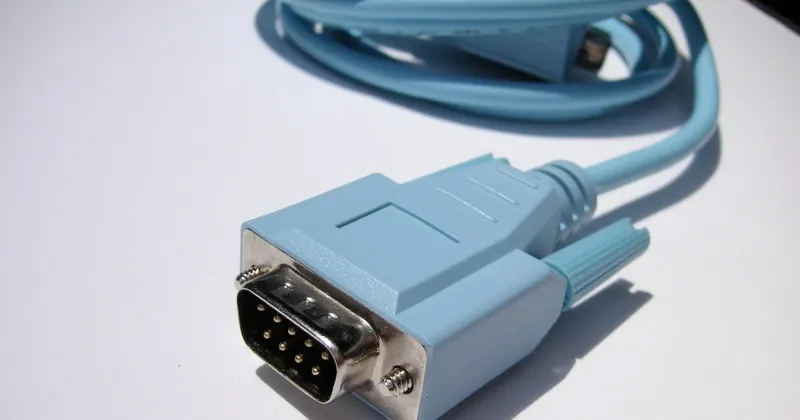
If someone at your weighbridge reads the weight off the display and types it into the computer, every lorry is a chance for a mistake. Many weighing indicators have an RS-232 serial output that sends the weight straight to the PC. Setting it up is not complicated, but you need to get the cable, the settings and the output mode right. This article covers what you need and how to fix the most common faults.
What the RS-232 serial port is
RS-232 is a serial communication standard: data travels bit by bit over a single transmission wire. It is old, but very robust, and it is still a very common output on industrial weighing indicators. On the computer it usually appears as a COM port (COM1, COM2…), and on the connector, normally a 9-pin one, only three signals are needed to read the weight:
- TX (transmit): where the indicator sends the data out.
- RX (receive): where the computer receives it.
- GND (ground): the common reference for both signals.
RS-232 is designed for short distances. If the computer is far from the weighbridge, or the cable runs past motors and electrical panels, interference can appear. In those cases, converters to other media (for example, to a network) are used, or the way of working is changed, as you will see below.
What you need
- A weighbridge indicator with a serial output set up to send the weight. Check its manual for the settings it supports and the data format it sends.
- A computer with a free serial port. Many current machines no longer have one; USB-to-serial adapters exist that create a virtual COM port, but it is best to check with the software supplier that they work with their application.
- The right cable. Connectors can be male or female, and the cable can be straight-through or crossed (the TX and RX wires are swapped). Which one works depends on how the indicator and the computer are wired; the indicator manual usually says.
- A program that reads the port and interprets what arrives.
Communication settings
For the computer to understand what the weighbridge sends, both ends have to speak the same language. These are the settings that must match:
| Setting | What it is | Typical example |
|---|---|---|
| Speed | Bits per second (baud) | 9600 |
| Data bits | Length of each character | 8 (or 7) |
| Parity | Simple error check | None, even or odd |
| Stop bits | Marks the end of each character | 1 |
| Flow control | Whether extra signals are used to pause transmission | None |
The values in the example column are only indicative: the right ones are those given in the manual for your indicator and your software. A single different setting is enough for nothing to arrive, or for meaningless characters to arrive.
Continuous or on-request mode
Indicators can send the weight in several ways:
- Continuous output: the indicator transmits the weight all the time, several times a second. The program sees the weight live and records it once it stabilises.
- On request: the computer sends a command and the indicator replies with the weight at that moment.
- On pressing a key on the indicator, which sends the weight just once.
Each frame usually includes the weight, the unit and, on many models, an indicator showing whether the weight is stable. The program has to be ready for the specific format of your indicator: not all manufacturers send the same thing or in the same order.
Step-by-step setup
- Find the communications menu in the indicator manual and note down the settings and the output mode.
- Set the indicator to the mode your program needs.
- Connect the cable with the equipment switched off, paying attention to which end goes to which device.
- In Windows, open Device Manager and check which COM port number the serial port has been assigned.
- Enter that port and the settings in the program.
- Put a known weight on the weighbridge and check that the value shown on screen matches the one on the display.
Common problems and their causes
| Symptom | Probable cause |
|---|---|
| Nothing arrives | Wrong COM port, straight-through cable when a crossed one was needed (or vice versa), indicator output not enabled. |
| Strange characters arrive | Different speed, parity or data bits at the two ends. |
| Works intermittently | Cable too long or unshielded, interference, loose connector. |
| “Port in use” | Another program has the same port open. |
| The weight won't settle | Lorry not completely stopped, wind or vibration; you have to wait for it to stabilise. |
| Stops working after changing computer | The new machine assigns a different COM number, or the USB-to-serial adapter has changed port. |
When the weighbridge is far from the office
It is not always a good idea to have the invoicing program next to the weighbridge. Sometimes the office is somewhere else, or on the site they prefer to keep weighing as they always have. In those cases you can capture the weighings on a PC next to the weighbridge and take the data to the office afterwards, instead of running a long cable.
How Arigest solves it
Arigest is installed on a computer connected to the electronic weighing equipment, which sends it the tonnage through the RS-232 serial port. It is designed to work with the Sorribes S-400 model, set to transmit the weight in continuous mode. The computer needs a free serial port, which is chosen in General Parameters (COM1 by default), and the cable must be a serial cable, with the female end to the PC and the male end to the weighing equipment. The user decides which weight to put on the delivery note once it has stabilised. You can find the details in weighbridge connection.
If the office is far away, Arigest has four working modes: direct reading from the weighbridge, with a communication module that captures weighings in the background, from a file, or with delivery notes on site and invoicing in the office. From there, the weight goes onto the delivery note and into invoicing. More questions are answered in the frequently asked questions.